Browser-based OCR does not mean that the browser somehow learned to read on its own. The page loads trained OCR models and a runtime, then uses your device to run them. The important distinction is where the recognition happens: in a local OCR tool, the selected image is processed in the browser rather than sent to an application recognition API.
That is how Local Image to Text works. It uses PP-OCRv6 models to find and read text, while a Web Worker keeps most of the processing away from the page's main thread.
What happens after you choose an image?
The process has four main stages:
- The browser reads the file. The selected image is decoded in browser memory. It does not need to be uploaded before recognition begins.
- A Web Worker receives the image. The OCR code runs in a separate worker instead of doing all of its work on the thread that handles clicks, scrolling, and page updates.
- Two models process the pixels. A detection model finds text regions; a recognition model reads the characters inside each region.
- The results are put in reading order. The worker returns the recognized lines, and the page displays them as editable text.
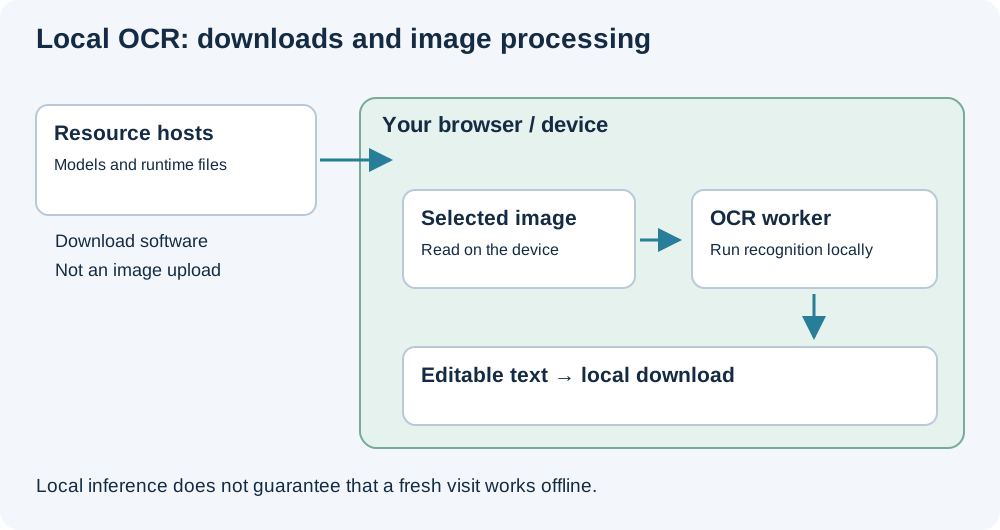
There is no image-upload step in this recognition path. The browser does make network requests for the site code, OCR models, and runtime files when they are not already cached. Those downloads travel toward your device; the selected document is not included in them.
Why does the first run take longer?
OCR models contain learned numerical weights. They are separate from the web page itself and must be downloaded before the browser can use them. The local text tool currently loads the Small detection and recognition models from the PP-OCRv6 family, along with ONNX Runtime Web.
The site stores the model responses in the browser's Cache API when caching is available. Later visits can reuse those copies, so a repeat run is often faster. A fresh browser profile, cleared site data, private-browsing restrictions, or an evicted cache can cause the files to be downloaded again.
It helps to separate the files involved:
| Item | Direction | Role |
|---|---|---|
| Website code | Downloaded to the browser | Provides the interface and processing logic |
| OCR model files | Downloaded to the browser | Find text regions and recognize characters |
| Runtime files | Downloaded to the browser | Execute the models on the device |
| Selected image | Read locally | Supplies the pixels to recognize |
| Extracted text | Created locally | Holds the OCR result for review and copying |
What does the Web Worker do?
A browser page normally has a main thread responsible for both the interface and JavaScript. Long-running work on that thread can delay a button press, scrolling, or a visual update.
A Web Worker provides another execution context. The page passes the image to the worker, the worker initializes the OCR library and runs recognition, and then it posts progress updates and the result back to the page. This separation helps the interface remain usable during processing.
It does not make OCR free: model inference still uses the same device's CPU or GPU and memory. A large image can therefore take longer, warm up the device, or compete with other tabs even though the page itself remains more responsive.
WebGPU and WebAssembly run the models
The models are stored in ONNX format, but they still need an execution engine. ONNX Runtime Web chooses a browser-compatible backend for that job.
On a supported browser and device, the tool first tries WebGPU, which can move suitable model operations to the GPU. If WebGPU is unavailable or cannot initialize, it falls back to WebAssembly (WASM), which runs compiled code in the browser, usually on the CPU.
This fallback matters because browser support and hardware vary. Two people can use the same OCR model but see different processing times depending on their browser, device, image dimensions, and available backend.
Detection and recognition are different jobs
The OCR pipeline uses one model to locate text and another to read it:
- Text detection finds regions that appear to contain words or lines.
- Text recognition converts the strokes inside each detected region into characters.
- Reading-order logic arranges the recognized regions into plain text.
This division explains several common errors. Missing text often means the detector did not find a usable region. A mix-up such as O and 0 is usually a recognition error. Correct lines appearing in the wrong order is a layout problem, especially on multi-column pages.
For a closer look at the two models, see What Is PP-OCRv6?. If the source is a grid and you need rows and columns rather than plain text, use Local Image to Table, which adds a separate table-structure model.
Can browser OCR work offline?
It can continue working without an image upload, but offline use is conditional. The page, model files, and runtime assets must already be available in the current session or browser caches. Browser cleanup, storage eviction, or an uncached runtime file can make another network connection necessary.
If offline access matters, open the tool and complete one recognition run while connected, then test it without a connection before relying on it in the field. Treat the cache as a convenience, not as permanent installed software.
How to get a faster, cleaner result
- Crop away desk surfaces, browser chrome, and wide blank margins.
- Rotate the image so the text lines are horizontal.
- Keep small type and punctuation large enough to distinguish.
- Close other demanding tabs if recognition is slow on a low-memory device.
- Compare names, dates, totals, and codes with the source before using the result.
Browser-based OCR is useful when a document should stay on the device and plain-text output is enough. Its first run includes setup work, and its speed depends on the hardware, but the underlying process is straightforward: download the tools, read the image locally, run detection and recognition in a worker, and return the text to the page.