Can't copy a table, equation, or text from a web page or PDF in Chrome? Use Capture Screenshot in the imgtotable Chrome extension, select the area, and choose a recognition mode. Here are five ways to reuse the result.
1. Turn Web and PDF Tables into Spreadsheets
A table in a web article or PDF may lose its rows and columns when copied. Capture it with its headers—for example, this comparison table in a paper open in Chrome's PDF viewer:
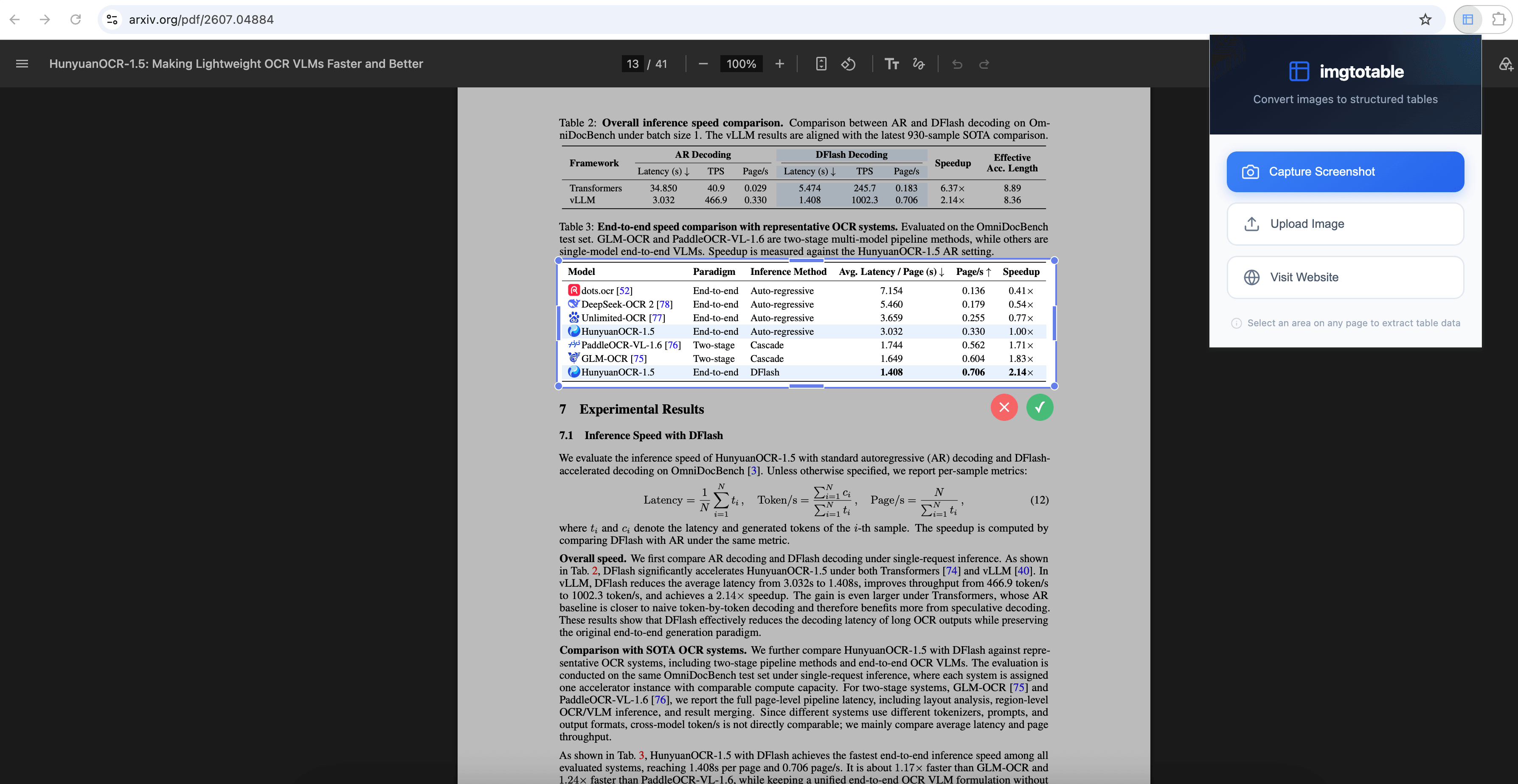
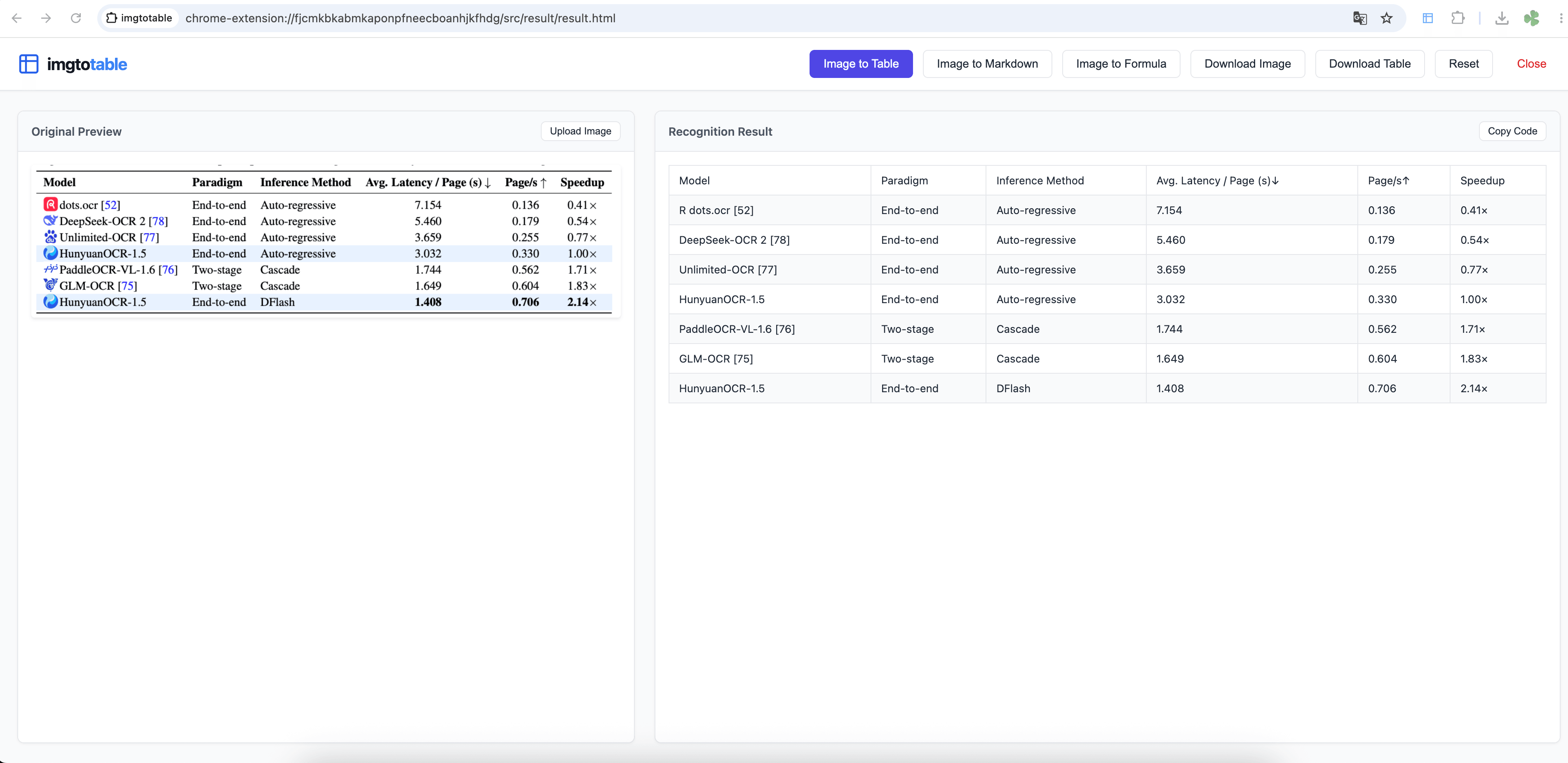
Image to Table converts the capture into rows and columns you can review and export as CSV for Excel.
2. Save Web Tutorial Steps as Notes
Following a web tutorial with instructions embedded in an image or video? Pause or scroll to the steps, capture them, and choose Image to Markdown to create editable notes. Include the page link or video timestamp so you can return to the explanation.
3. Copy PDF Equations as LaTeX
Reading lecture slides or a research paper in Chrome's PDF viewer? Capture an equation and choose Image to Formula to extract LaTeX for your notes or draft. Check subscripts, exponents, and integral limits against the PDF before using it.
4. Extract Text from Scanned PDFs
A scanned report or invoice opened in Chrome may have no selectable text. Capture the paragraph or invoice fields you need and choose Image to Markdown, then copy the text into an email or expense record. Double-check invoice numbers and amounts against the scan.
5. Copy Event Details from Web Posters
Event details on websites and social media often appear only inside a poster image. Capture the poster directly in Chrome, as shown in this example from X:
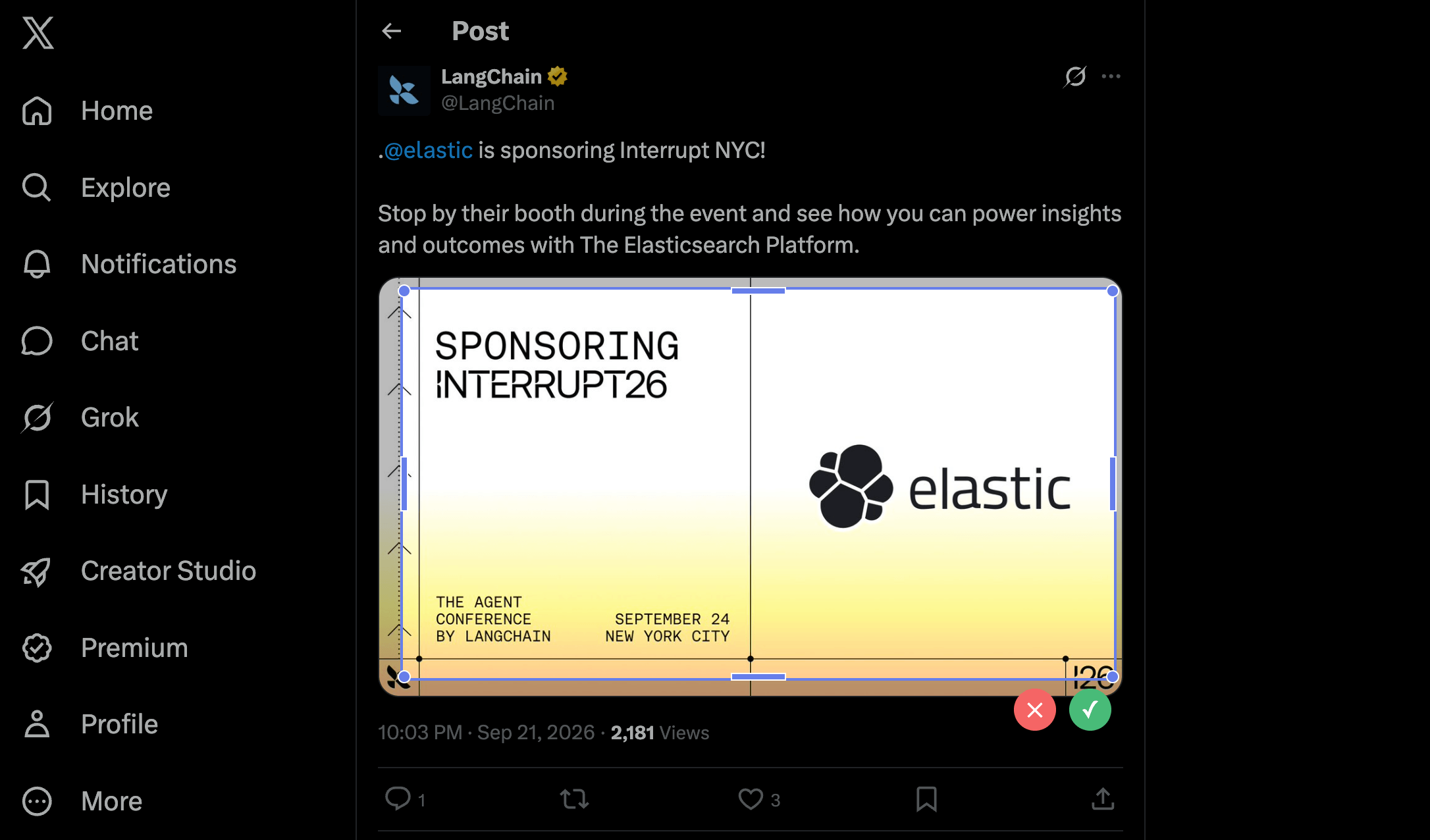
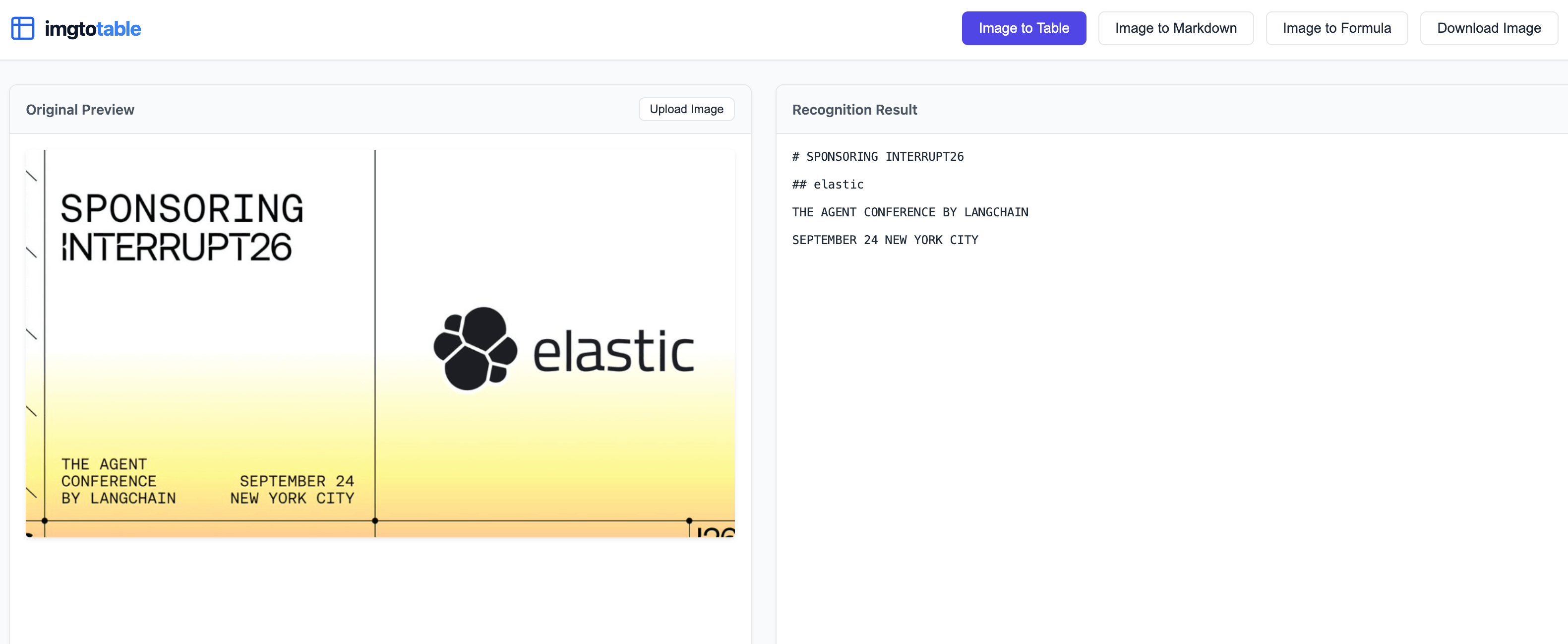
Image to Markdown turns the poster's conference name, sponsor, date, and city into text you can copy into your notes or a message.
For clearer results, zoom in before capturing and check the output against the original. Recognition uploads the captured image to a server, so use it only for content you are permitted to upload.