How often do you find yourself staring at an uncopyable data table, math formula, or text snippet on a webpage, wishing you didn't have to retype it by hand? Whether it is an analytics dashboard locked behind canvas graphics or a table embedded in a slide deck, manually transcribing data wastes valuable time.
The imgtotable Chrome extension lets you crop any visual section of your browser screen and convert it directly into structured Excel spreadsheets, LaTeX math code, or clean Markdown notes in seconds.
Here is a step-by-step walkthrough to help you install the extension, pin it to your toolbar, and complete your very first image conversion.
Step 1: Install and Pin the Extension
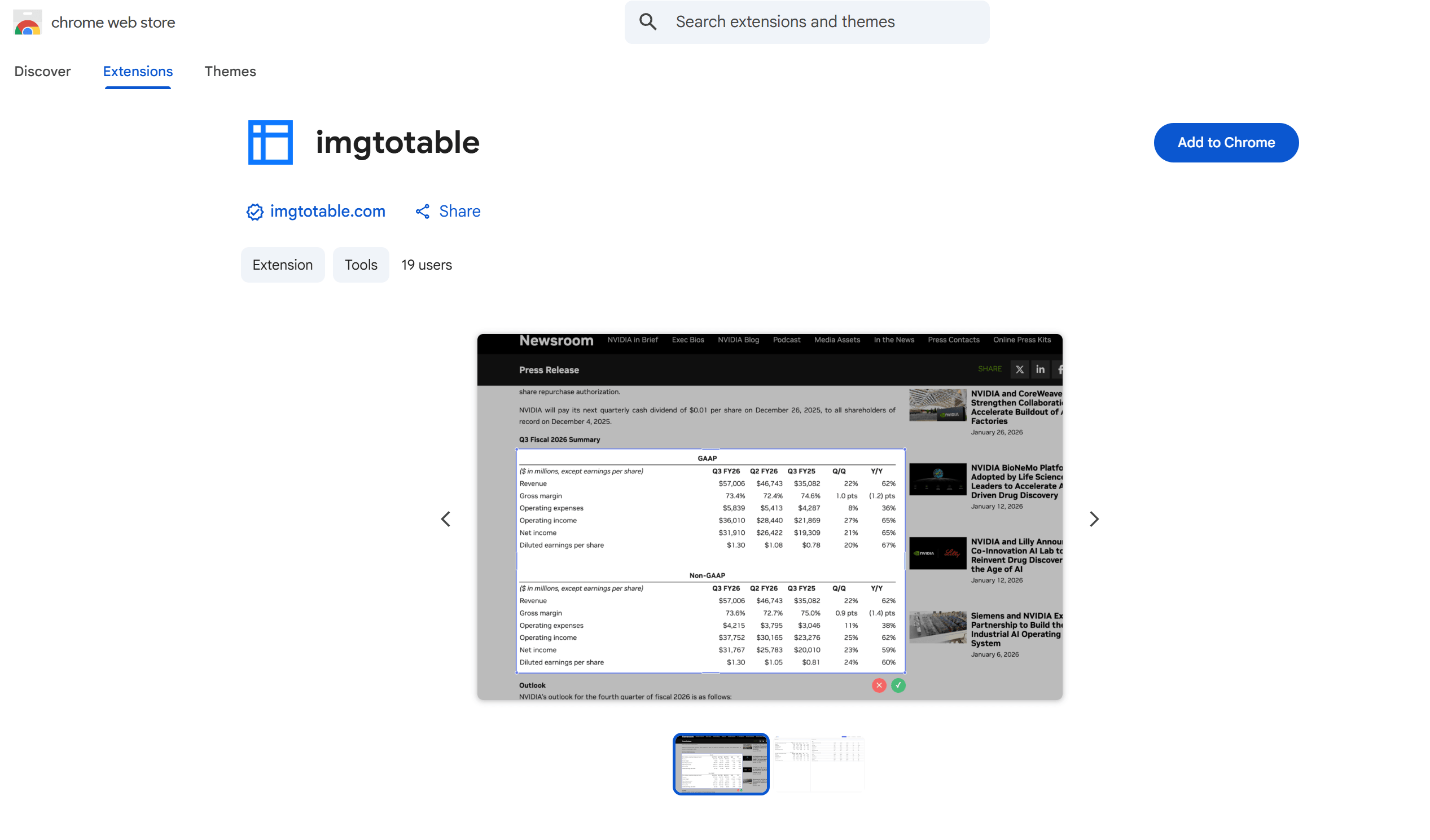
Installing the extension takes less than 30 seconds:
- Visit the official imgtotable Chrome Web Store listing.
- Click the blue Add to Chrome button.
- Review the standard permissions popup and confirm by clicking Add extension.
- Pin to your toolbar for quick access:
- Click the Puzzle Piece icon (Extensions) in the top-right corner of Chrome.
- Find imgtotable in the dropdown list.
- Click the Pin icon next to it so the imgtotable icon stays permanently visible beside your address bar.
Step 2: Prepare Your Target Web Section
Before triggering a screenshot crop, spend two seconds getting your webpage ready:
- Scroll the full content into view: Ensure top column headers and bottom total rows are visible on your screen.
- Dismiss floating popups: Close cookie banners, floating customer support widgets, or chat overlays that might cover the data.
- Zoom in if small: If the text or numbers look tiny, press
Ctrl +(Windows) orCmd +(Mac) to zoom in slightly. Higher resolution produces sharper OCR accuracy.
Step 3: Take Your First Screen Crop
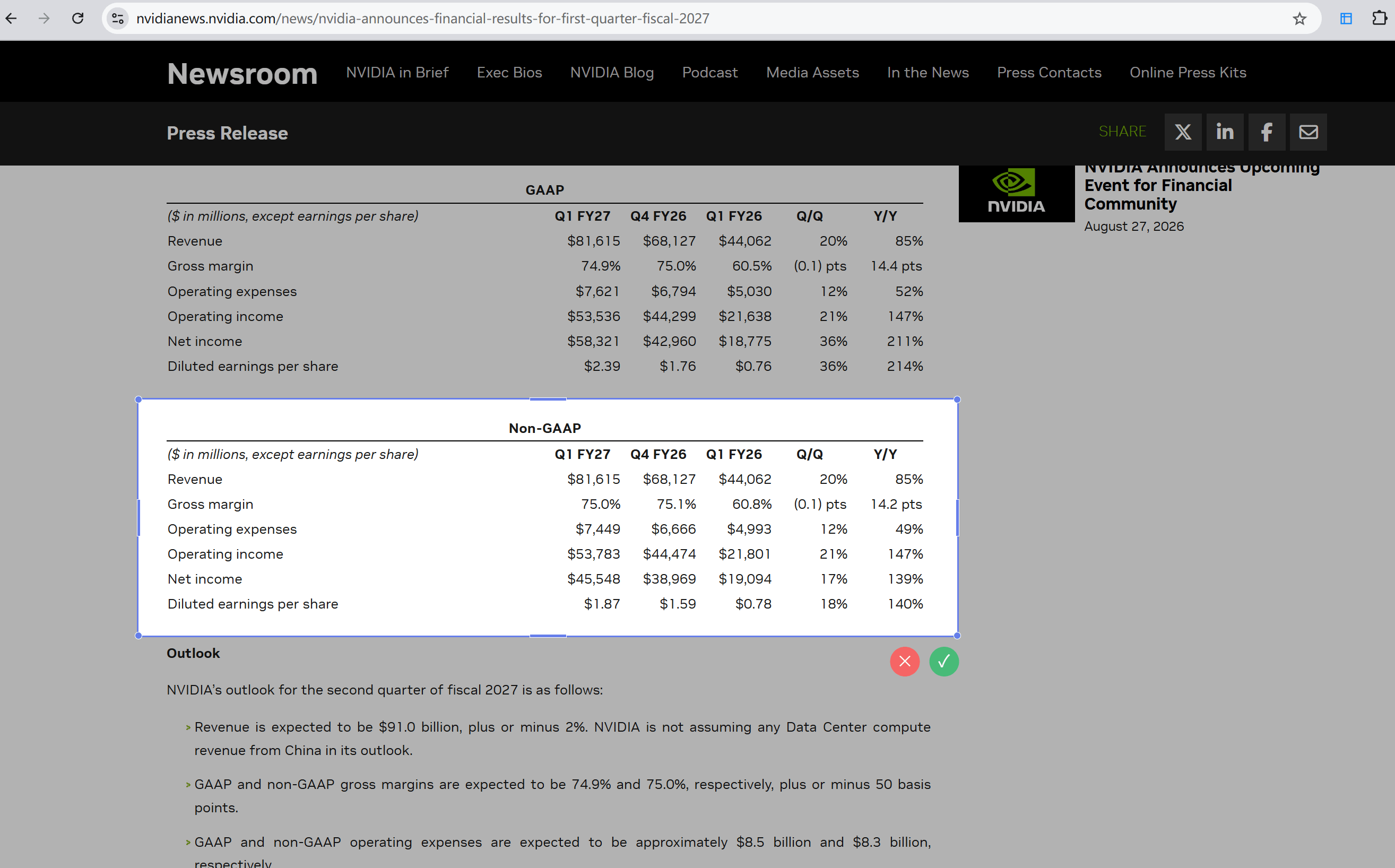
Now you are ready to capture the image:
- Click the imgtotable extension icon in your toolbar.
- In the popup menu, click Capture Screenshot.
- Your screen will darken slightly into an interactive selection canvas.
- Click and drag a box around the target table, equation, or paragraph, leaving a small margin around the text edges.
- Click the green Checkmark button to confirm your selection.
The extension will automatically open a dedicated review tab in Chrome displaying your captured screenshot.
Step 4: Pick Your Conversion Mode
On the review tab, you will see three specialized AI conversion buttons:
| Button | Best For | Output Delivered |
|---|---|---|
| Image to Table | Spreadsheets, price lists, & schedules | Downloadable CSV file & interactive preview |
| Image to Markdown | Documentation, blog posts, & paragraphs | Clean Markdown text ready to copy |
| Image to Formula | Math, physics, & chemistry notation | Formatted LaTeX math source code |
Click the action button that matches your content. The extension sends your crop to our high-accuracy server vision models, and within 2 to 3 seconds, your recognized output appears on screen.
Step 5: Spot-Check and Export Your Data
Before closing the tab, take 15 seconds to review your output:
- For Tables: Spot-check your top column headers and bottom row count. Click Download Table to save a clean
.csvfile directly into your Downloads folder. Open the file in Microsoft Excel or Google Sheets to verify that SKUs with leading zeros (like00124) remained formatted properly. - For Markdown & LaTeX: Highlight the generated text and click Copy Code to paste it directly into Notion, Obsidian, Overleaf, or your code editor.
- Save Source Reference: If you want to keep the original visual crop for your records, click Download Image.
Helpful Everyday Keyboard Shortcuts and Tips
To make your daily capture workflow even faster:
- Rapid Screen Refresh: If you recently updated the extension or opened a new tab, press
F5orCmd + Rto refresh the active page before capturing. - Handling Multi-Page Tables: If an online table spans across multiple long web pages, capture each screen section individually and download the CSVs. You can easily merge the rows together inside Microsoft Excel or Google Sheets in seconds.
- Converting Offline Images: You can also click Upload Image inside the extension popup to load previously saved desktop screenshots without taking a new screen crop.
Privacy and Workflow Best Practices
- One Image at a Time: Save or download your output before starting a new screenshot capture, as each review tab holds one active conversion session.
- Cloud vs. Local Privacy: The Chrome extension uses server-side vision AI endpoints to handle complex tables and math formulas. If you are working with strictly confidential medical or financial records that cannot be uploaded online, use our browser-local tools: Local Image to Text or Local Image to Table.
With the imgtotable extension pinned to your toolbar, you can capture, extract, and reuse web data whenever you need it—without ever typing numbers by hand again.