A screenshot is often the only way to capture a table: the website blocks selection, the PDF locks copying, or the data exists only in a slide or a photo. The question then becomes: how do you get that table back into a usable, editable format?
Our site offers two image-to-table converters, and in this guide we will show how each works, when to pick which, and how to export to Excel, CSV, and Markdown.
Two Tools, One Goal
1. Image to Table — maximum accuracy
Upload the screenshot; a server-side vision model reads the image and returns structured table data. It handles:
- Merged cells and multi-row headers
- Complex nested layouts
- Hand-written or low-quality tables (within reason)
The image is processed securely and not stored after conversion.
2. Local Image to Table — maximum privacy
Everything runs in your browser: the PP-OCRv6 text engine plus a SLANet table-structure model, both via WebAssembly/WebGPU. The image never leaves your device. Ideal for confidential data.
Rule of thumb: use the AI tool for messy, complex tables; use the local tool when privacy matters more than edge-case accuracy.
Step-by-Step Conversion
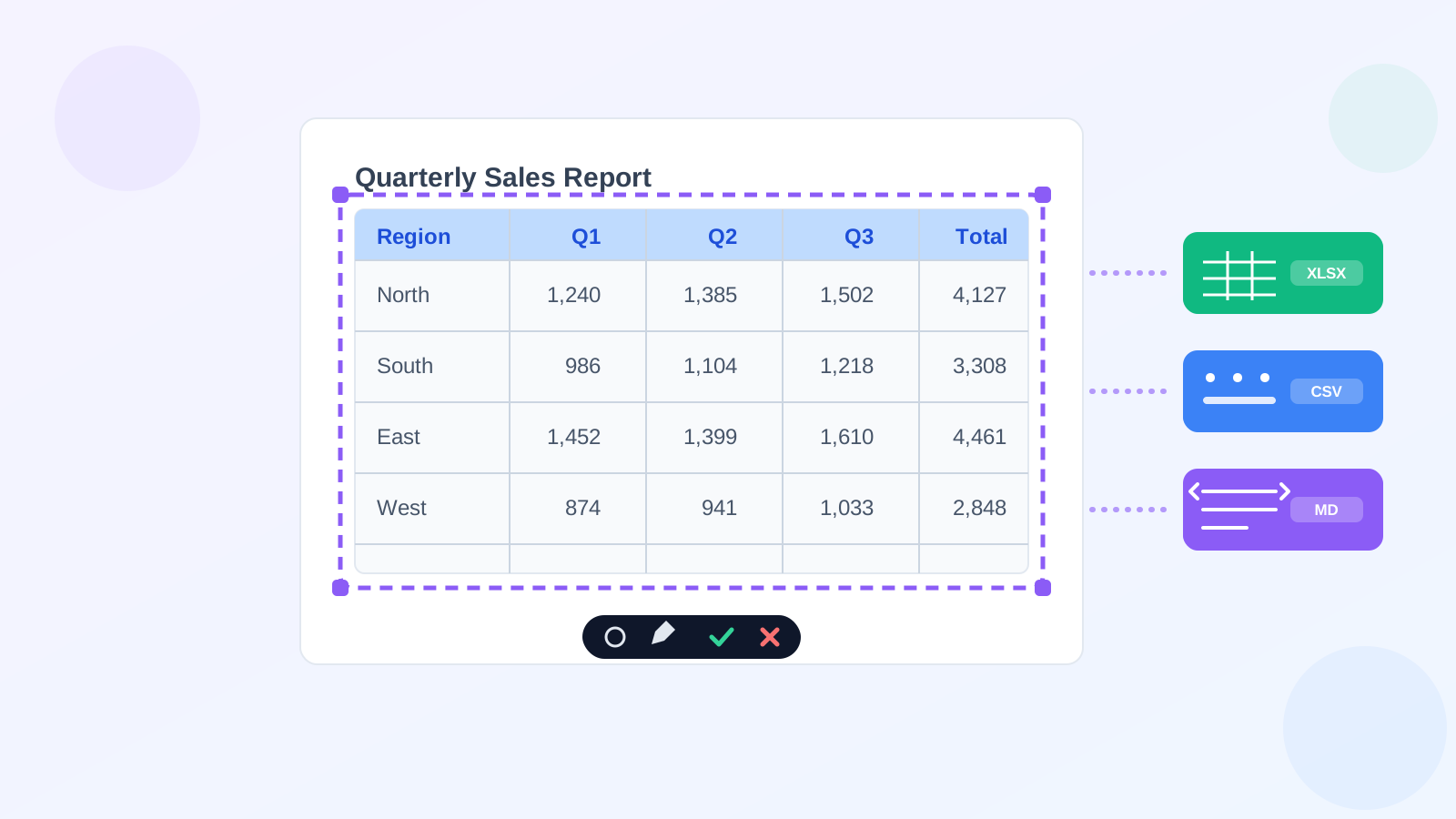
Here is an example of a table screenshot ready for conversion:
- Screenshot the table (
Cmd + Shift + 4on macOS,Win + Shift + Son Windows). Capture the full table in one shot. - Open the tool and drop the image in.
- Wait a few seconds while the table structure and cell contents are recognized.
- Review the preview — the recognized table renders immediately so you can spot-check.
- Export in your preferred format.
Which Export Format Should You Use?
| Format | Best for | Notes |
|---|---|---|
| Excel (.xlsx) | Data analysis, pivot tables | Numbers stay numeric; opens in Excel/WPS/Numbers |
| CSV | Importing into databases/scripts | Plain text, one sheet, universal |
| Markdown | Docs, README, Notion, chat | Readable everywhere, easy to paste |
If you are pasting into a report or wiki, Markdown is usually the fastest. For anything you plan to calculate on, go with Excel or CSV.
Troubleshooting
- A column merged into one cell? Make sure the screenshot is sharp; blur is the top cause of structural errors.
- Wrong numbers? Verify that low-contrast cells are readable at 100% zoom before converting.
- Only part of the table captured? Re-screenshot with the full region; partial tables produce partial results.
Beyond Screenshots
The same tools work on photographs of paper tables, scanned documents, and PDF pages rendered as images. If your starting point is a PDF, see our guide on extracting tables from PDF.
Conclusion
Whenever a table is stuck inside an image, you now have two fast paths out: Image to Table for best accuracy, or Local Image to Table for full privacy — both free, no installation, exporting to Excel, CSV, and Markdown.