PDF files are great for sharing documents, but they are terrible for working with data. If you have ever tried to copy a table out of a PDF, you know the pain: the columns collapse, the rows get merged, and numbers end up scattered across the clipboard as unusable text.
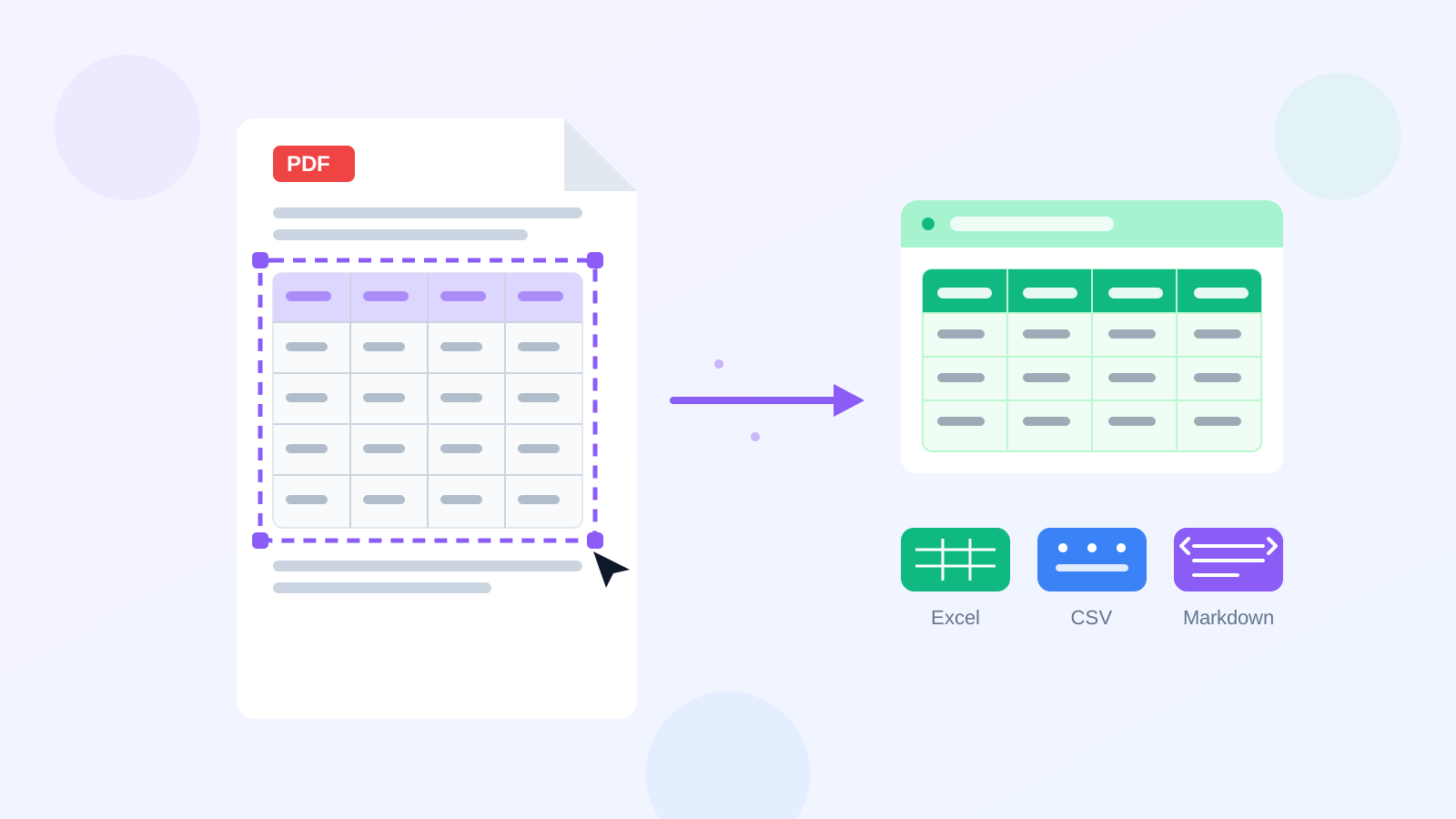
In this guide, we will show you a simple method to extract any table from a PDF and turn it into a clean, editable format — Excel (XLSX), Markdown, or CSV — without installing any software and without uploading your PDF to a third-party server.
Why Copying Tables from PDF Is So Hard
PDF was designed as a display format, not a data format. A table that looks structured on screen is often stored internally as dozens of independent text fragments with absolute positions. When you select and copy it:
- Merged cells are lost
- Column order gets scrambled
- Numeric values mix with their headers
- Empty cells disappear entirely
Re-typing the table by hand is an option, but for a table with more than a few rows it is slow and error-prone.
The Screenshot Method (Step by Step)
The fastest workaround is to treat the table as an image and let AI do the heavy lifting. Here is the full workflow:
Step 1: Open the PDF and locate the table
Open your PDF in any viewer — Preview on macOS, Adobe Acrobat, your browser's built-in viewer, or any other reader. Zoom in until the table text is crisp and clearly readable.
Step 2: Take a screenshot of the table
- macOS: press
Cmd + Shift + 4, then drag to select the table area. - Windows: press
Win + Shift + S(Snipping Tool), then drag to select the table. - Linux: use
gnome-screenshotor Flameshot.
Make sure the screenshot includes the complete table — all rows and columns — and avoid cutting through any cell.
Step 3: Convert the screenshot to a table
Open our Image to Table tool, drop the screenshot in, and wait a few seconds. The AI analyzes the image, understands the table structure (including merged cells), and reconstructs it as structured data.
If your document is sensitive and you prefer that nothing leaves your device, use the Local Image to Table tool instead. It runs a PP-OCRv6 OCR model entirely in your browser — the image is never uploaded anywhere.
Step 4: Export the result
Once the table is recognized, you can:
- Copy as Markdown — perfect for docs, README files, and chat apps
- Download as Excel (.xlsx) — ready for further analysis
- Download as CSV — universal format for any data tool
Tips for Best Results
- Zoom in before screenshotting. Small or blurry text is the number one cause of recognition errors.
- Capture only the table. Extra surrounding text can confuse the structure detection.
- Keep the table flat. If the PDF is a scanned photo of a curved page, try to straighten it first.
- One table per run. If the PDF page has multiple tables, screenshot and convert them one at a time.
Conclusion
You do not need expensive PDF editors or sketchy "PDF to Excel" upload services to get your table data back. Screenshot the table, run it through the Image to Table tool, and export to the format you need — the whole process takes under a minute.
Try it now: Image to Table · Local Image to Table (100% offline)