A table screenshot contains pixels rather than editable cells. Image-to-table recognition reconstructs rows, columns, and their text so you can review the result and export it to a spreadsheet or document.
Choose Image to Table for server-side recognition or Local Image to Table to process the selected image in your browser. Both need a clear source and a check before the data is reused.
Two Tools, One Goal
1. Image to Table — server-side recognition
Upload the screenshot; a server-side vision model reads the image and returns structured table data. Review these features carefully when they appear:
- Merged cells and multi-row headers
- Complex nested layouts
- Hand-written or low-quality tables (within reason)
This route uploads the image to the recognition service. Use the local route when uploading is not appropriate for your document.
2. Local Image to Table — browser-local recognition
The local pipeline combines PP-OCRv6 text recognition with SLANet+ table structure recognition. It runs in the browser and keeps the selected image on the device. Models and runtime assets may download on first use.
Try the local tool when keeping recognition on the device is your main requirement. When uploads are acceptable, compare both workflows using the same sample and judge how much correction each result needs.
Step-by-Step Conversion
Here is an example of a table screenshot ready for conversion:
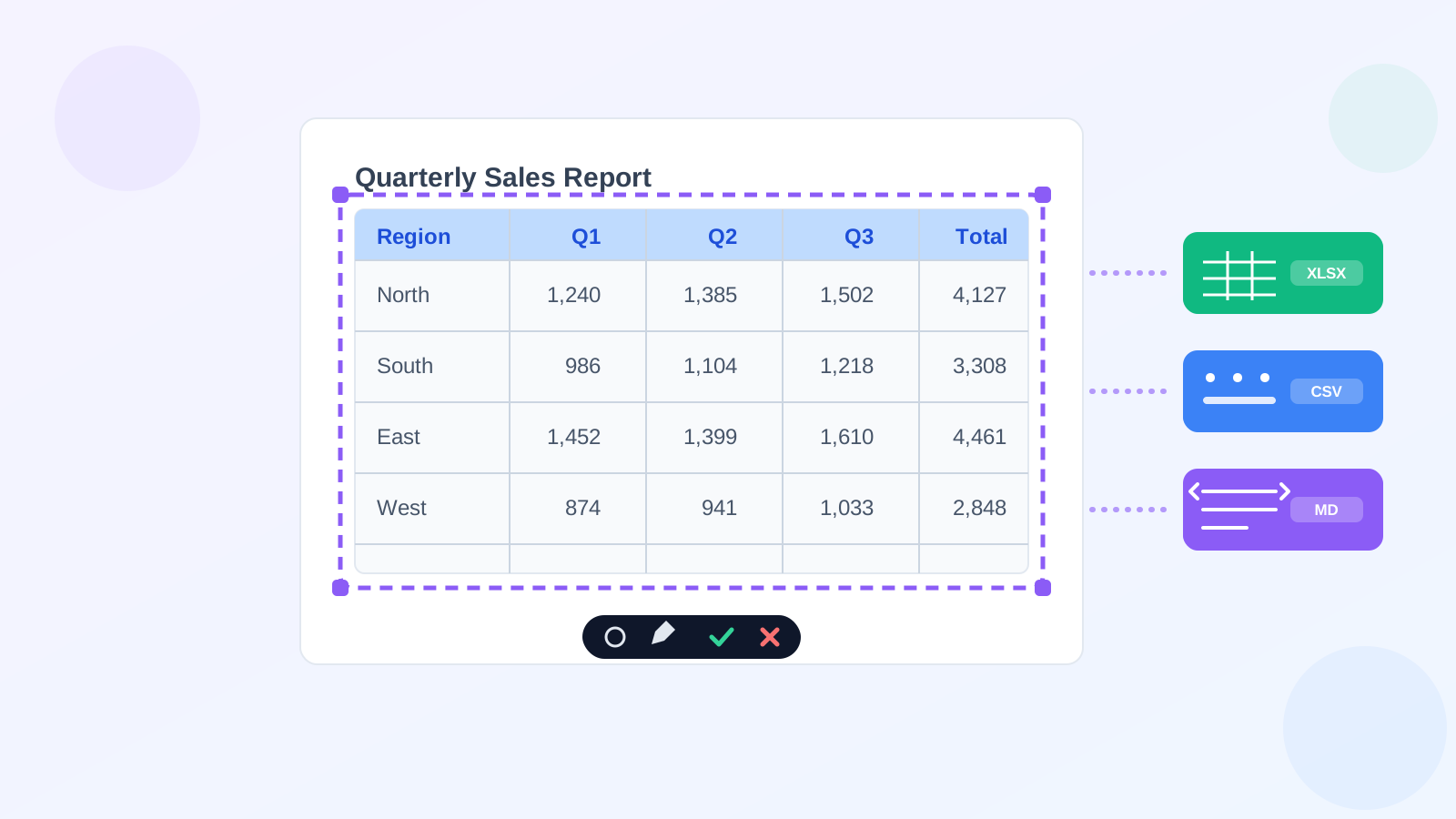
- Screenshot the table (
Cmd + Shift + 4on macOS,Win + Shift + Son Windows). Capture the full table in one shot. - Open the tool and drop the image in.
- Wait for recognition while the table structure and cell contents are recognized.
- Review the preview — the recognized table renders immediately so you can spot-check.
- Export in your preferred format.
Which Export Format Should You Use?
| Format | Best for | Notes |
|---|---|---|
| Excel (.xlsx) | Data analysis, pivot tables | Check cell types and values after opening |
| CSV | Importing into databases/scripts | Plain text, one sheet, universal |
| Markdown | Docs, README, Notion, chat | Requires a renderer that supports tables |
If you are pasting into a report or wiki, Markdown is usually the fastest. For anything you plan to calculate on, go with Excel or CSV.
Troubleshooting
- A column merged into one cell? Make sure the screenshot is sharp; blur can obscure text and cell boundaries.
- Wrong numbers? Verify that low-contrast cells are readable at 100% zoom before converting.
- Only part of the table captured? Re-screenshot with the full region; partial tables produce partial results.
Beyond Screenshots
The same tools work on photographs of paper tables, scanned documents, and PDF pages rendered as images. If your starting point is a PDF, render the relevant page as a clear image before recognition.
Check structure before correcting values
Count the data rows in the source, keeping titles, subtotals, and headers separate. Compare the result's first and last record, then check every column heading. Missing rows can make later comparisons look as though all the values have shifted.
Follow one row from left to right. An empty discount cell should not cause the regular price to move into its place. A wrapped description may occupy two printed lines while remaining one record. Check row boundaries before splitting or combining entries.
For grouped headings, preserve the relationship between the group and its subcolumns. A year heading over “Units” and “Revenue” can become two complete labels in an analysis copy. Flatten these layouts only when the repeated labels retain the original meaning.
Protect numbers and identifiers
Compare decimal points, minus signs, percentages, and units directly with the image. Do not turn a dash into zero unless the source defines it that way. Keep notes such as “amounts in thousands” with the exported table.
Codes such as 00124 are identifiers, not quantities. Set their columns to text when importing into a spreadsheet if needed. A correct recognition result can lose its leading zeros when another application guesses the data type.
A screenshot shows displayed values, not the formulas behind them. If you add a total or unit-price calculation after export, label it as a derived field and check it separately. Matching a source total is useful, but two wrong values can cancel each other out.
Open the final file
Reopen the workbook or import the CSV in its destination application. Check headers, row count, leading zeros, and representative values again. For Markdown, preview the table where it will be read; ordinary Markdown syntax does not preserve spreadsheet merge instructions.
Keep a raw export before major edits and save the checked copy beside the original screenshot. For large tables, record any unresolved cells rather than hiding guesses in a polished grid.