Image to PDF combines JPG, PNG, WebP, or GIF images into one PDF, with one image per page. It runs in your browser without uploading your images. No account is required, and no watermark is added.
How to Convert
- Add images. Select or drop your files, then drag the thumbnails into the order you want.
- Choose a page size. Use Original (image size) for pages based on each image's dimensions, or A4, A5, Letter, or Legal for uniform sheets.
- Convert and save. Click Convert to PDF, check the preview, then click Download PDF.
Example: Two Diagrams in One PDF
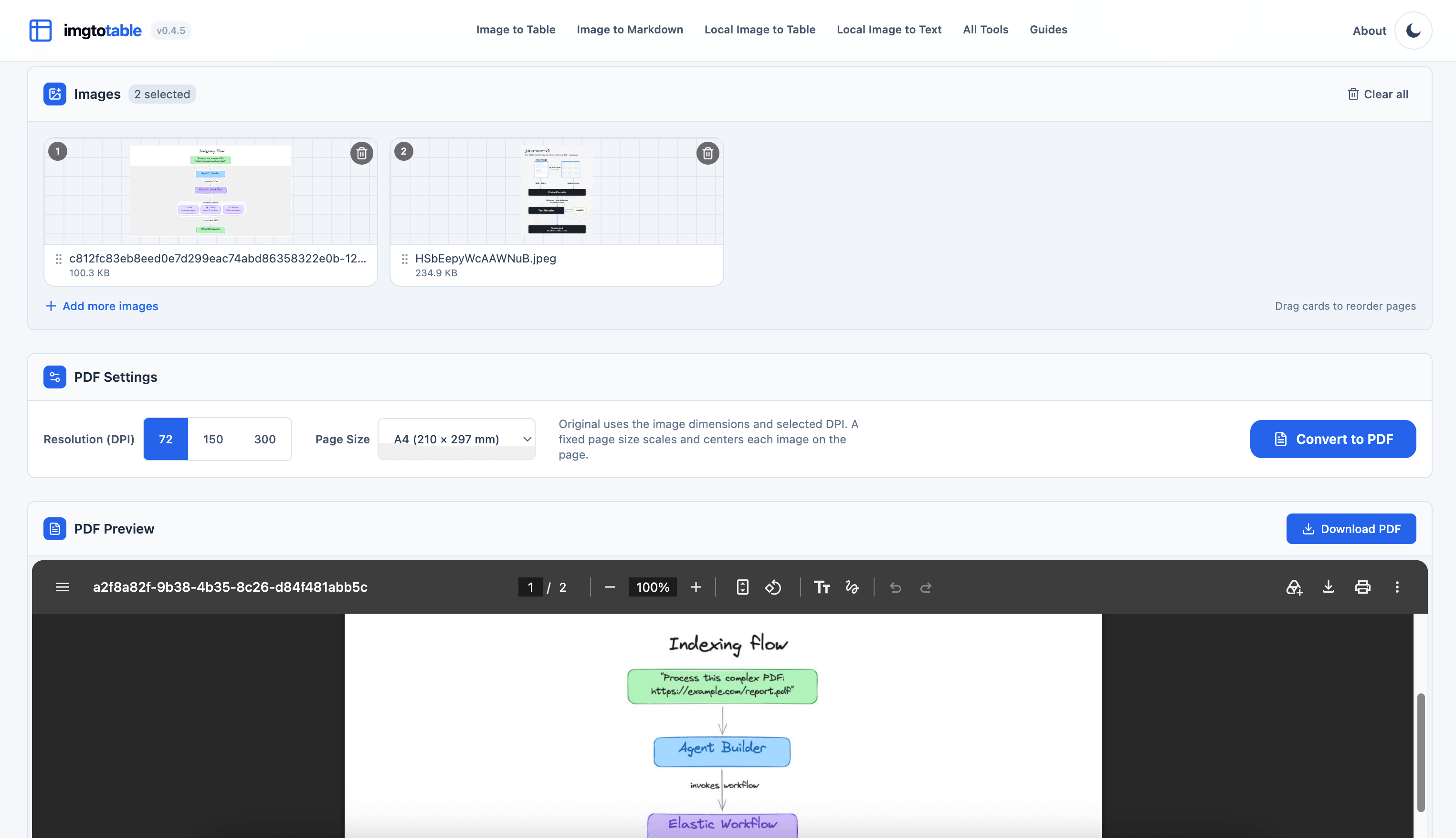
The example below combines an indexing flowchart and an OCR architecture diagram into a two-page document. The settings are 72 DPI and A4 (210 × 297 mm).
Each diagram fits on its own A4 page without cropping or stretching, following the thumbnail order. The preview shows page 1 of 2, ready to download and share as a single file.
Page Size and Image Quality
- Original size: DPI controls the physical page dimensions. A 3000 × 2400 pixel image produces a 10 × 8 inch page at 300 DPI.
- Fixed paper size: Each image is scaled and centered on the selected sheet. Choose A4 or Letter when you need consistent printed pages.
- Clarity: Increasing DPI does not sharpen blurry text. Use clear source images and check small labels in the preview.
The PDF contains images, not searchable or editable text. To copy text from an image, use Local Image to Text.