OCR (Optical Character Recognition) is the technology that turns text inside images into actual, selectable text. You need it whenever the text you want is trapped in an image: a screenshot, a photo of a whiteboard, a scanned receipt, or a PDF page exported as a picture.
In this article we will walk through how to extract text from images online for free, and why doing it in your browser matters for privacy.
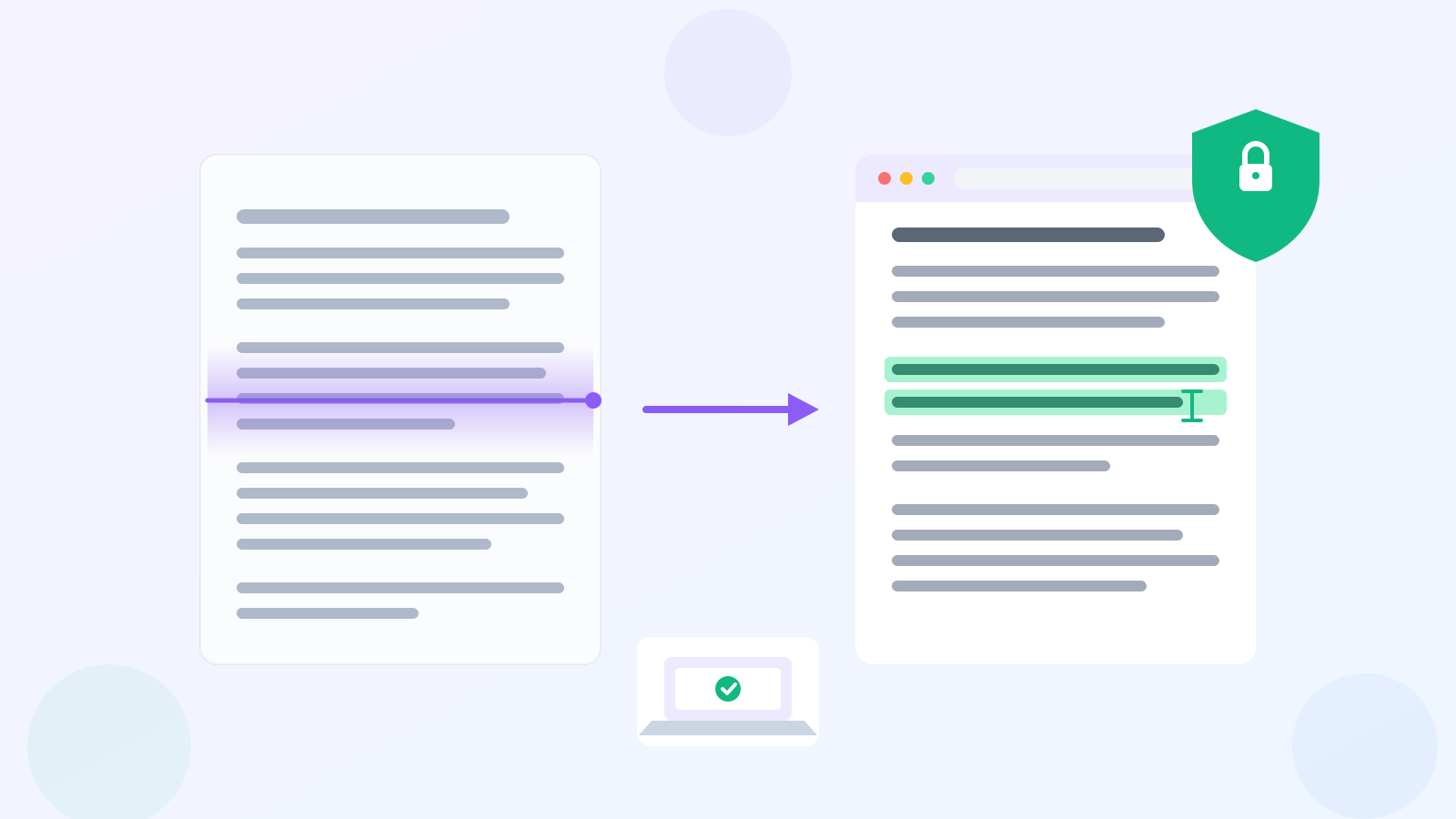
Common Situations Where You Need OCR
- Screenshots with text you want to edit — error messages, chat logs, code snippets
- Photos of documents or books — contracts, notes, printed pages
- Scanned PDFs — pages that behave like images, not text
- Presentation slides — text baked into exported images
Typing it all out manually is painfully slow. OCR finishes it in seconds.
How to Extract Text: Step by Step
Step 1: Get your image ready
PNG or JPEG works best. If your source is a PDF, export or screenshot the page first. For photos, make sure the text is reasonably sharp and well-lit.
Step 2: Run OCR
Open the Local Image to Text tool and drop your image in. The tool runs the PP-OCRv6 model directly in your browser using WebAssembly:
- The model is downloaded and cached the first time (a few MB).
- Text regions are detected in the image.
- Each region is recognized and converted to text.
- Lines are reassembled in reading order.
You get plain, copyable text — including multi-column layouts and CJK languages (English, Chinese, Japanese).
Step 3: Copy or download the result
Copy the text to your clipboard or download it as a .txt file.
Want formatting too?
If your image contains formatted content — paragraphs, headings, lists, tables — try Image to Markdown instead. It returns structured Markdown, and you can further convert it with Image to Table for tabular data.
Why Browser-Based OCR Is Better for Privacy
Most online OCR services ask you to upload your image to their servers. That means your data — possibly containing personal info, financial numbers, or confidential work content — leaves your machine and sits on a third-party server you cannot audit.
The Local Image to Text tool takes a different approach:
- Zero upload: the image never leaves your device; all inference runs locally via WebAssembly.
- Works offline: once the model is cached, you can run OCR without any connection.
- No account, no limits, no watermarks: it is just a web page.
For sensitive documents (IDs, invoices, medical records, internal reports), this is not a nice-to-have — it is the difference between safe and risky.
Tips for Higher Accuracy
- Higher resolution helps. Text below ~10 pixels tall is hard for any OCR.
- Good contrast. Dark text on a light background is ideal.
- Crop to the relevant region to avoid irrelevant noise.
- Avoid heavy compression — blurry JPEG artifacts hurt accuracy.
Conclusion
You do not need to install desktop OCR software or hand your images to an upload service. With the browser-native Local Image to Text tool, text extraction is fast, free, and completely private. For richer output, pair it with Image to Markdown.